
Add Your Bot to a Server
TL;DR
Set your Discord bot token in VibeCord.
Use the generated invite link to authorize the bot in your guild.
To add your bot to a Discord server, you’ll (1) set your Discord bot token in VibeCord, then (2) use the bot’s invite link to authorize it in your guild (server).
Last updated: 2025-12-14
Prerequisites
Section titled “Prerequisites”Before adding your bot to a server:
- You’ve generated bot code using VibeCord
- You have a Discord Developer account
- You’ve created a bot application in the Discord Developer Portal
Step 1: Create a Discord Bot Application
Section titled “Step 1: Create a Discord Bot Application”If you haven’t already:
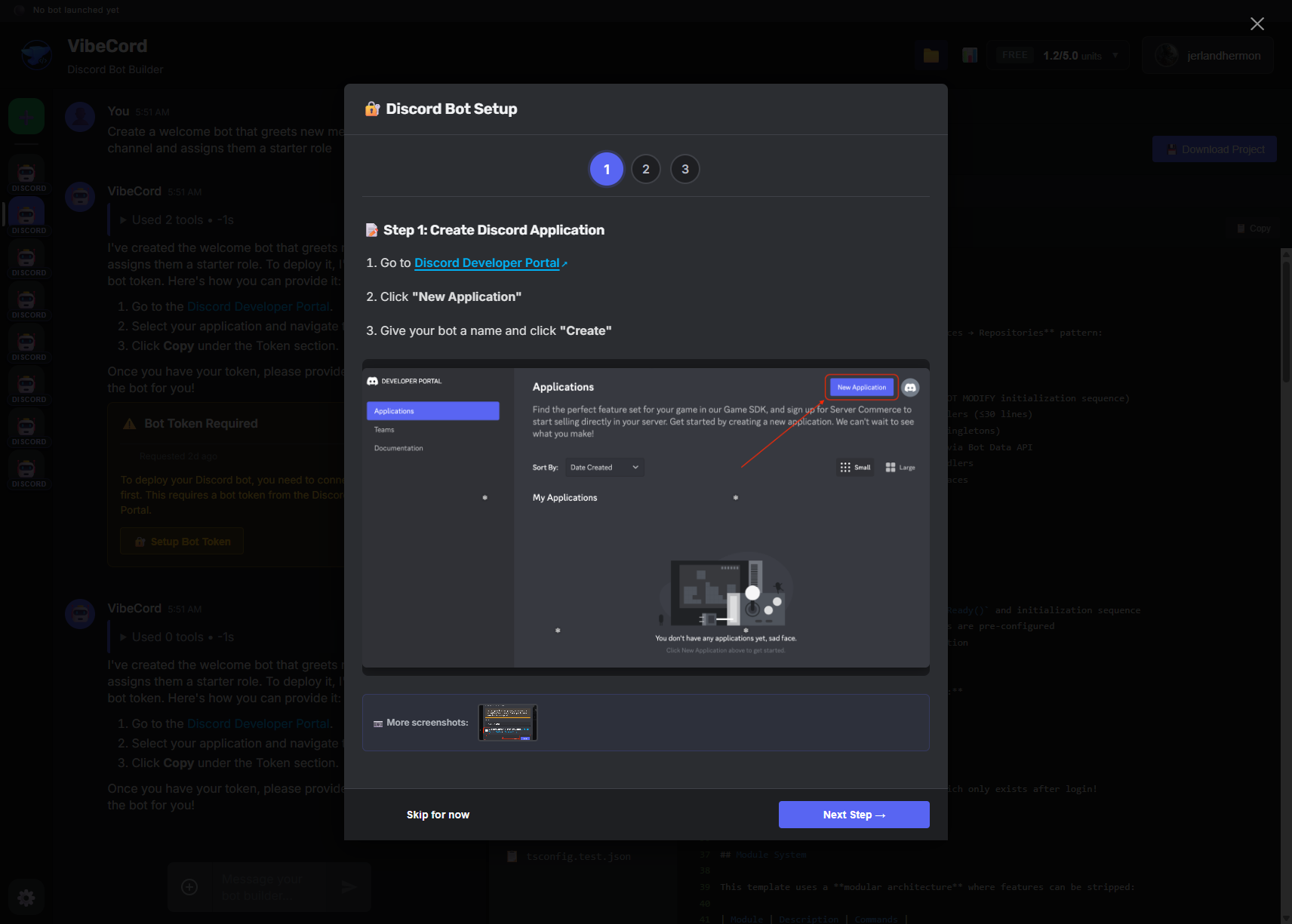
- Go to the Discord Developer Portal
- Click New Application and give it a name
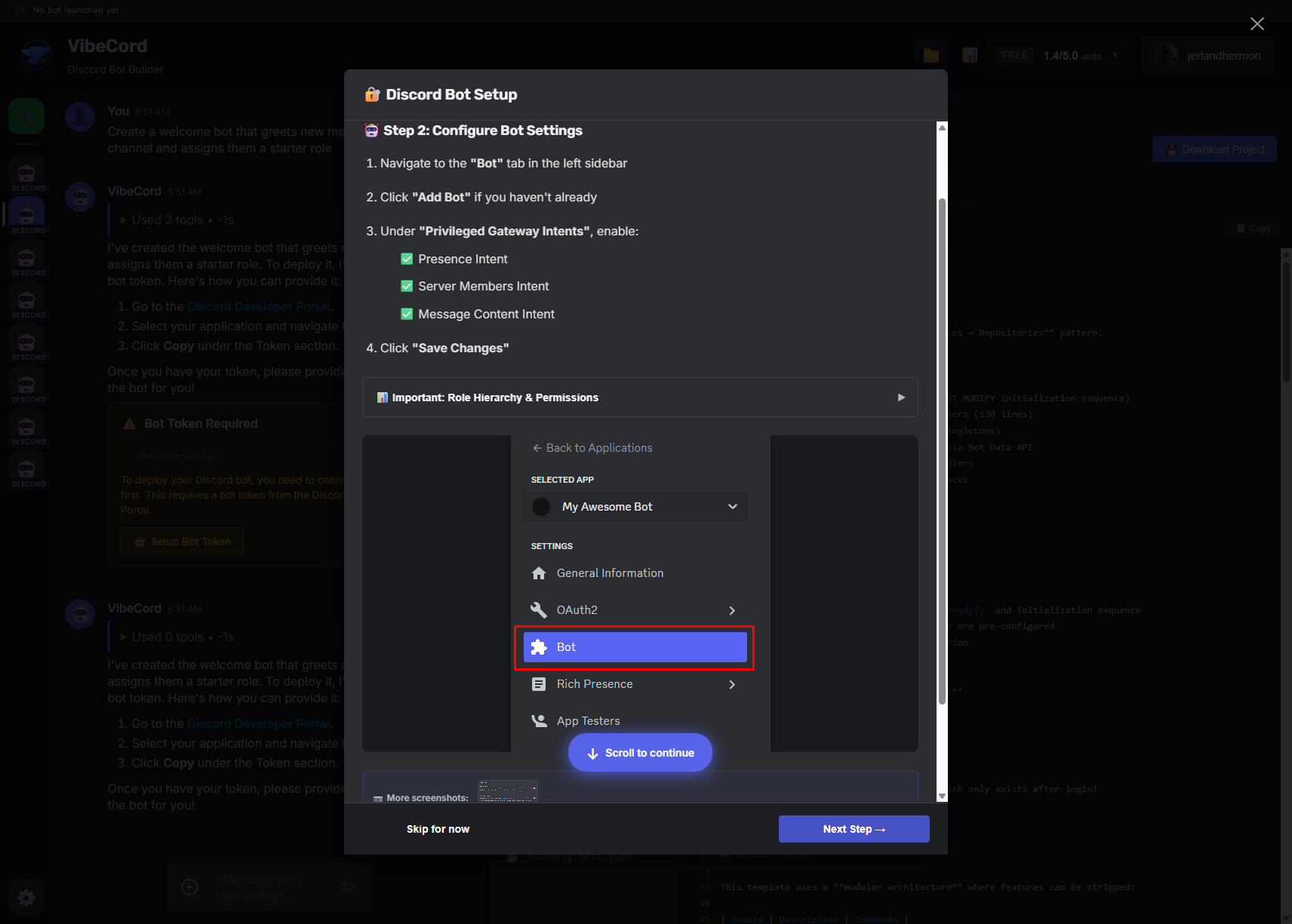
- Go to the Bot section in the sidebar
- Click Add Bot → Yes, do it!
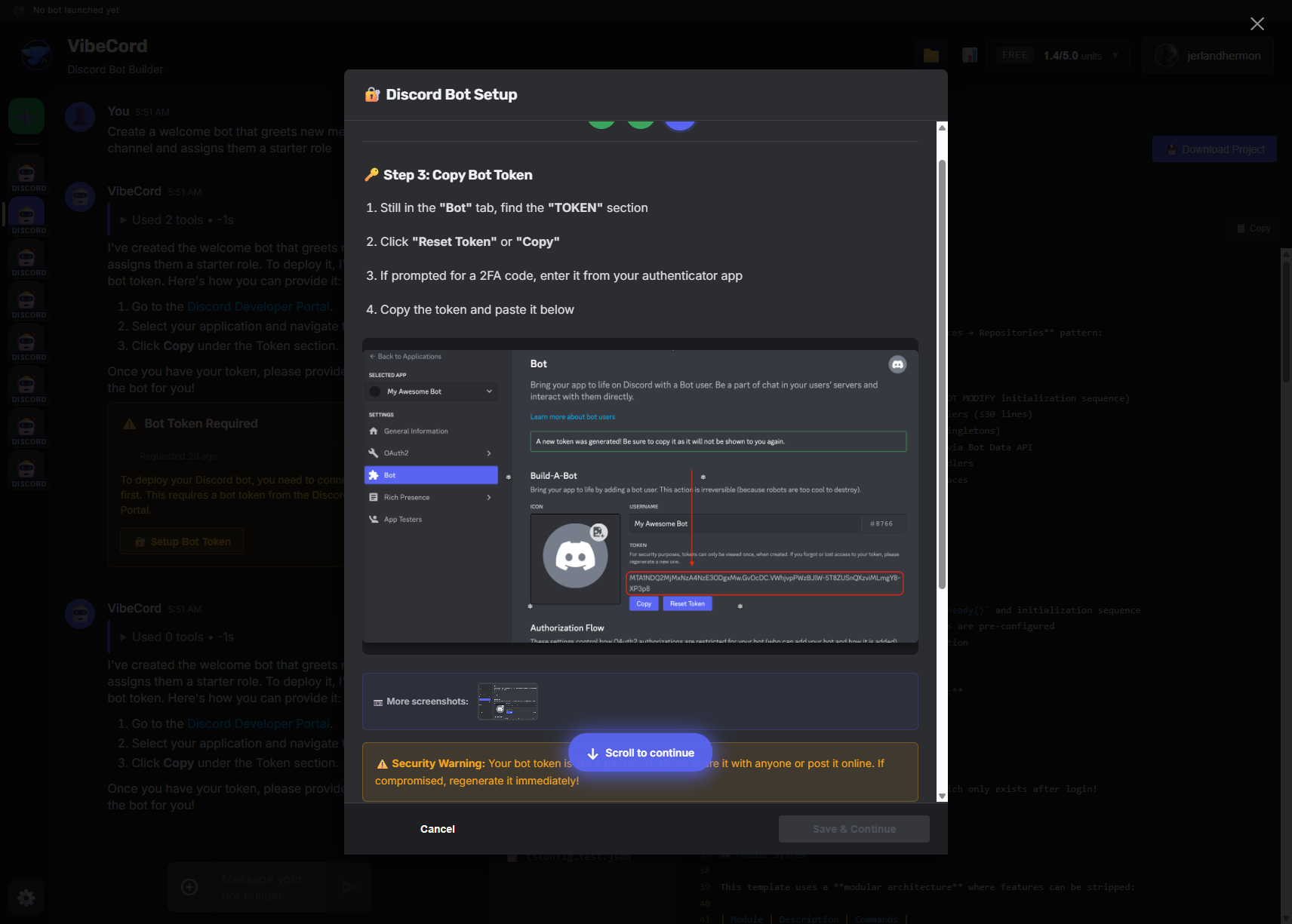
- Under Token, click Reset Token and copy it securely
Step 2: Configure the Token in VibeCord
Section titled “Step 2: Configure the Token in VibeCord”VibeCord will prompt you to add a token when you try to deploy:
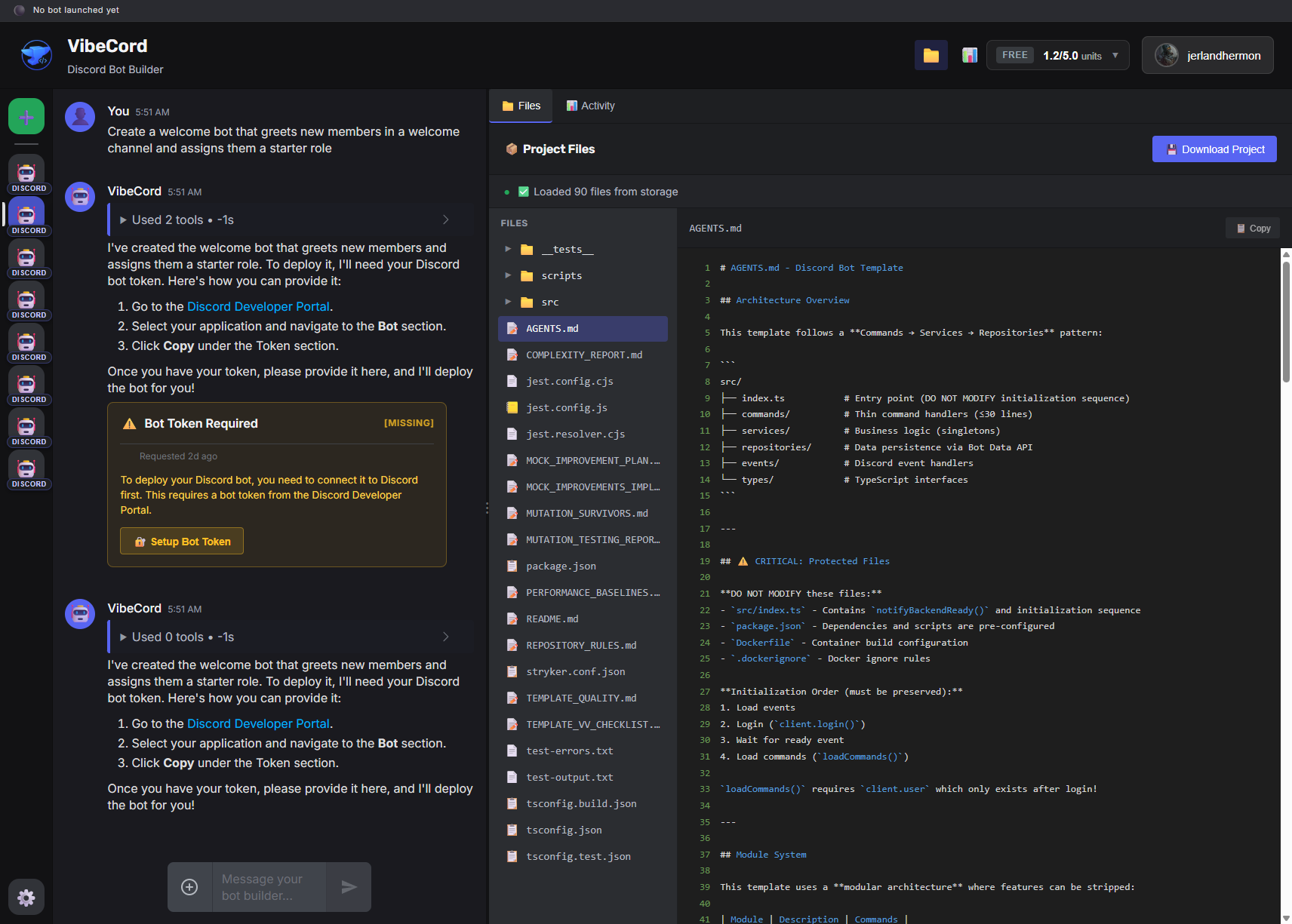
The token wizard guides you through the process step by step:
Step 1: Open the Discord Developer Portal
Step 2: Navigate to your bot’s token
Step 3: Paste your token
Success! Token saved
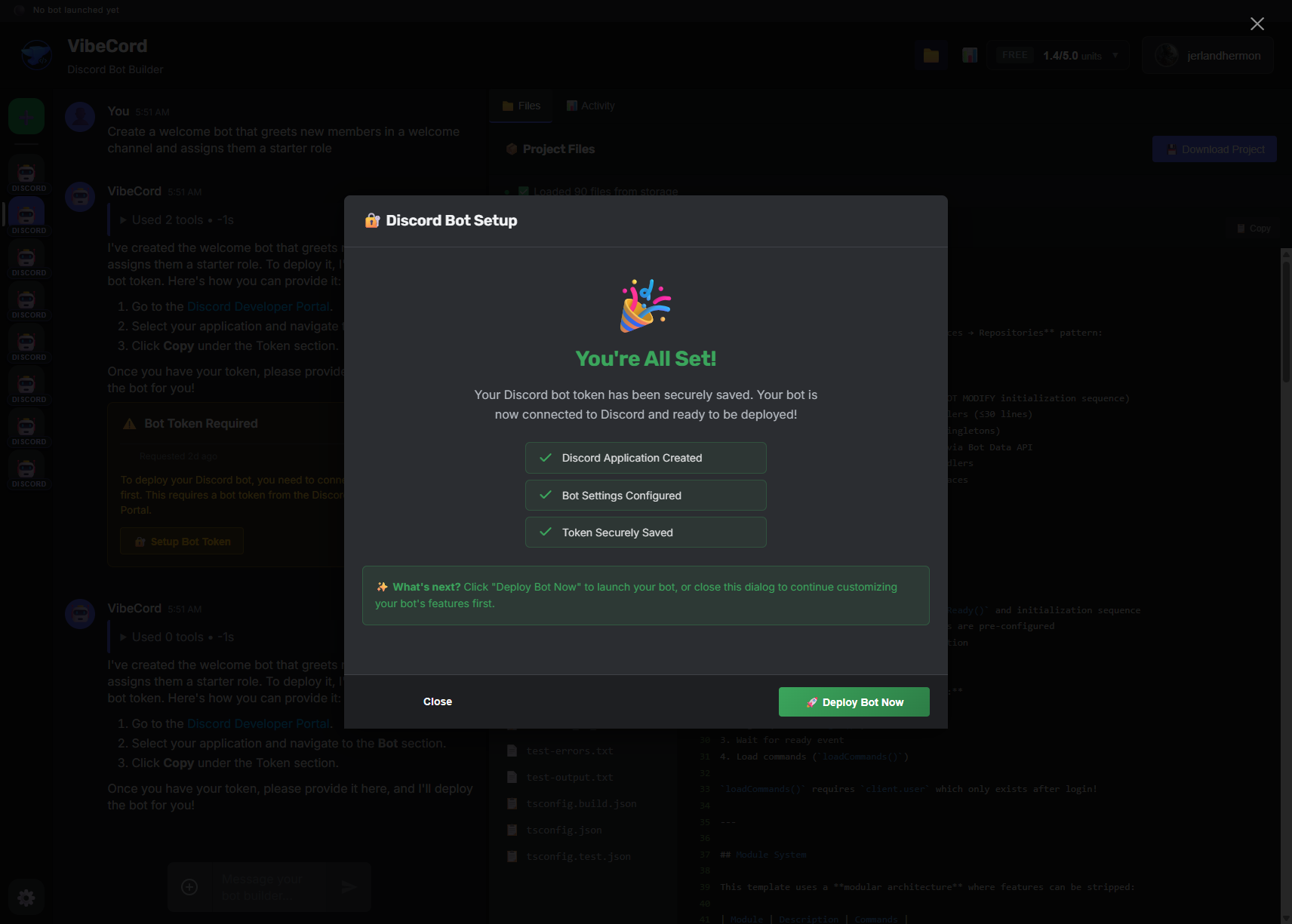
Your token is now securely stored and will be used when deploying your bot.
Step 3: Enable Required Intents
Section titled “Step 3: Enable Required Intents”Some bot features require Privileged Gateway Intents in the Discord Developer Portal:
| Intent | Required For |
|---|---|
| MESSAGE CONTENT | Reading message text (not just slash commands) |
| SERVER MEMBERS | Welcome messages, role management |
| PRESENCE | Tracking member online status |
To enable:
- Go to your bot in the Discord Developer Portal
- Navigate to Bot → Privileged Gateway Intents
- Enable the intents your bot needs
Step 4: Add Bot to Your Server
Section titled “Step 4: Add Bot to Your Server”After deploying your bot, you can add it to your Discord server:
- Open your project’s Permissions tab (if available)
- Click Add Bot to Server or Copy Invite Link
- Select the server you want to add the bot to
- Authorize the requested permissions
- Complete the captcha if prompted
Alternatively, build the OAuth URL manually:
https://discord.com/api/oauth2/authorize?client_id=YOUR_CLIENT_ID&permissions=PERMISSION_VALUE&scope=bot%20applications.commandsYou can find your Client ID in the Discord Developer Portal under your application’s General Information.
Step 5: Verify Your Bot is Online
Section titled “Step 5: Verify Your Bot is Online”After adding the bot:
- Check the VibeCord deployment panel — status should show “Running”
- Look for your bot in the Discord server member list
- Try using a slash command (type
/to see available commands)
Troubleshooting
Section titled “Troubleshooting”Bot appears offline
Section titled “Bot appears offline”- Check if the deployment is running in VibeCord
- Verify your token is correct and hasn’t been reset
- Ensure required intents are enabled in Discord Developer Portal
Commands don’t appear
Section titled “Commands don’t appear”- Slash commands can take up to 1 hour to sync globally
- Try in a DM with the bot first (syncs faster)
- Check that
applications.commandsscope was included in the invite
”Invalid Token” error
Section titled “”Invalid Token” error”- Your token may have been reset in Discord Developer Portal
- Go to Settings → Discord Configuration and update the token
Bot can’t read messages
Section titled “Bot can’t read messages”- Enable MESSAGE CONTENT intent in Discord Developer Portal
- Redeploy after enabling intents