
Token Location
Discord Developer Portal → Your App → Bot → Token
TL;DR
Create a bot application in the Discord Developer Portal.
Copy the Bot Token and paste it into your VibeCord project.
To set up a Discord bot token for VibeCord, create a bot application in the Discord Developer Portal, copy the Bot Token, then paste it into your VibeCord project.
Last updated: 2025-12-14
This only needs to be done once — after setup, VibeCord handles everything else.
Your Discord bot token is like a password that lets your bot connect to Discord’s servers. Without it, your bot can’t:
Open the Discord Developer Portal
Go to discord.com/developers/applications and sign in with your Discord account.
Click “New Application”
You’ll see a blue button in the top-right corner.
Enter your bot’s name
Choose a name for your application (you can change this later). This will also be your bot’s default username.
Accept the Terms of Service and click “Create”


Navigate to the “Bot” tab
In the left sidebar, click on Bot.
Click “Add Bot” (if needed)
If you don’t see a bot section yet, click Add Bot → Yes, do it!
Enable Privileged Gateway Intents
Scroll down to the Privileged Gateway Intents section and enable these toggles:
Click “Save Changes”
Don’t forget this step!


This is the most important step — you’ll need to copy this token and paste it into VibeCord.
Stay in the “Bot” tab
You should still be on the Bot settings page.
Find the TOKEN section
Scroll up to find the Token section (below the username and icon).
Click “Reset Token” or “Copy”
Enter 2FA code if prompted
Discord may ask for your authenticator code for security.
Copy the token immediately!
Discord only shows the token once. Copy it right away and paste it into VibeCord.


Your token should look something like this:
MTMxNTY4MDI0NTQ1MDQ.G4ABCD.xyz123abc456def789...Now paste your token into VibeCord:
Open your project in VibeCord
Click “Deploy” or open Settings → Discord Configuration
Paste your token in the Token field
Click “Save & Continue”
VibeCord includes a built-in wizard that guides you through these same steps:
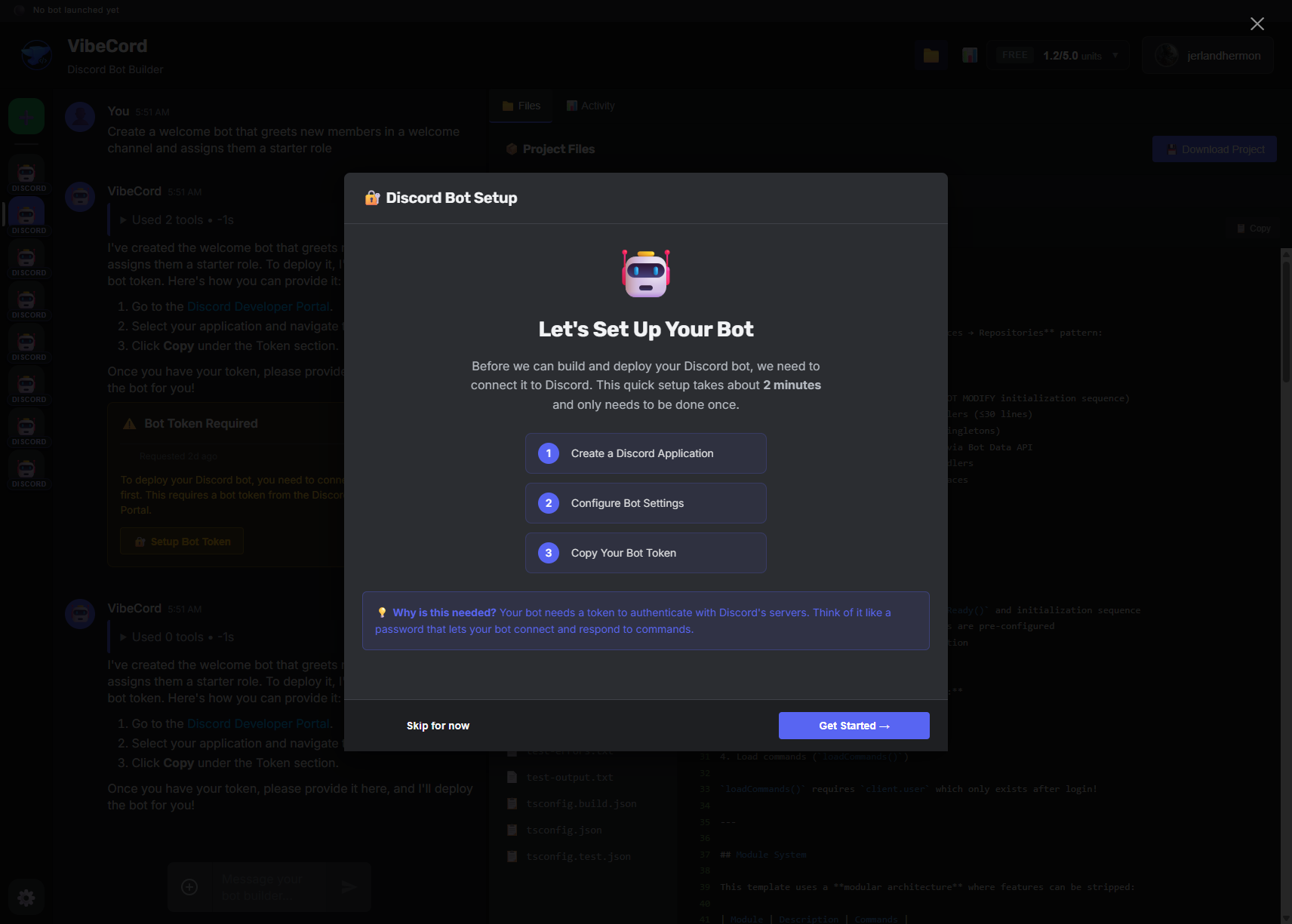
Step 1 of the wizard:
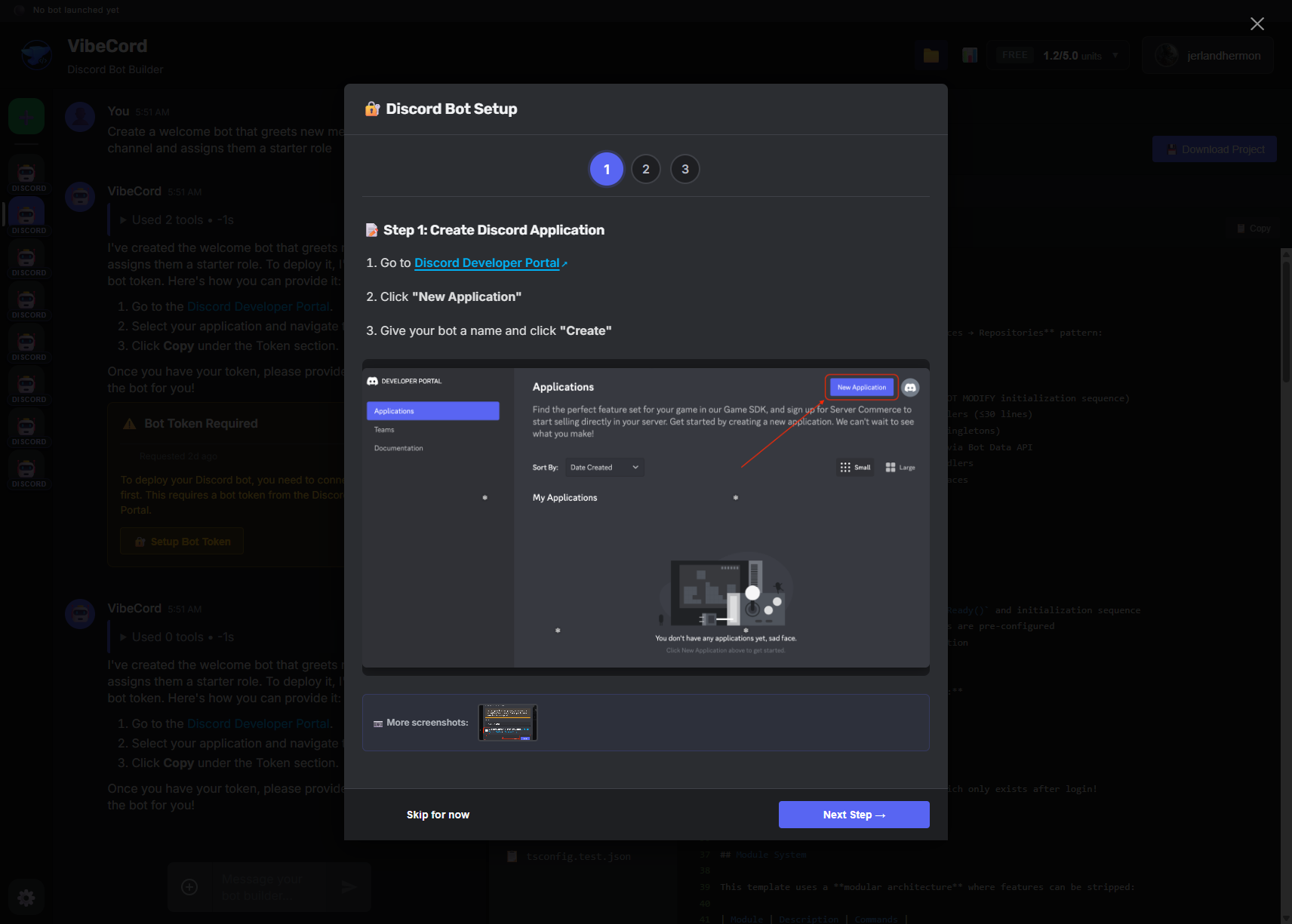
Step 2 - Configure intents:
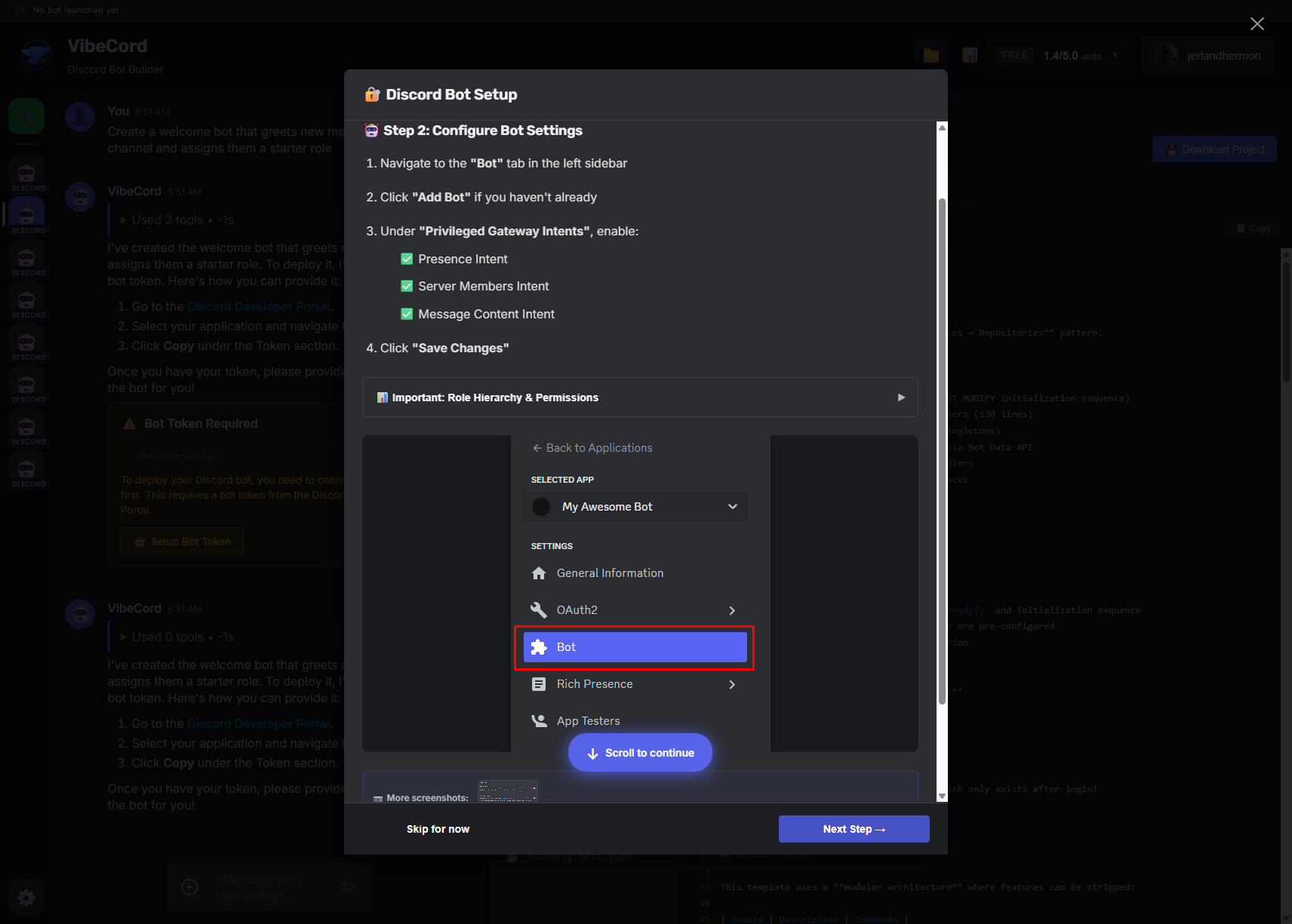
Step 3 - Paste your token:
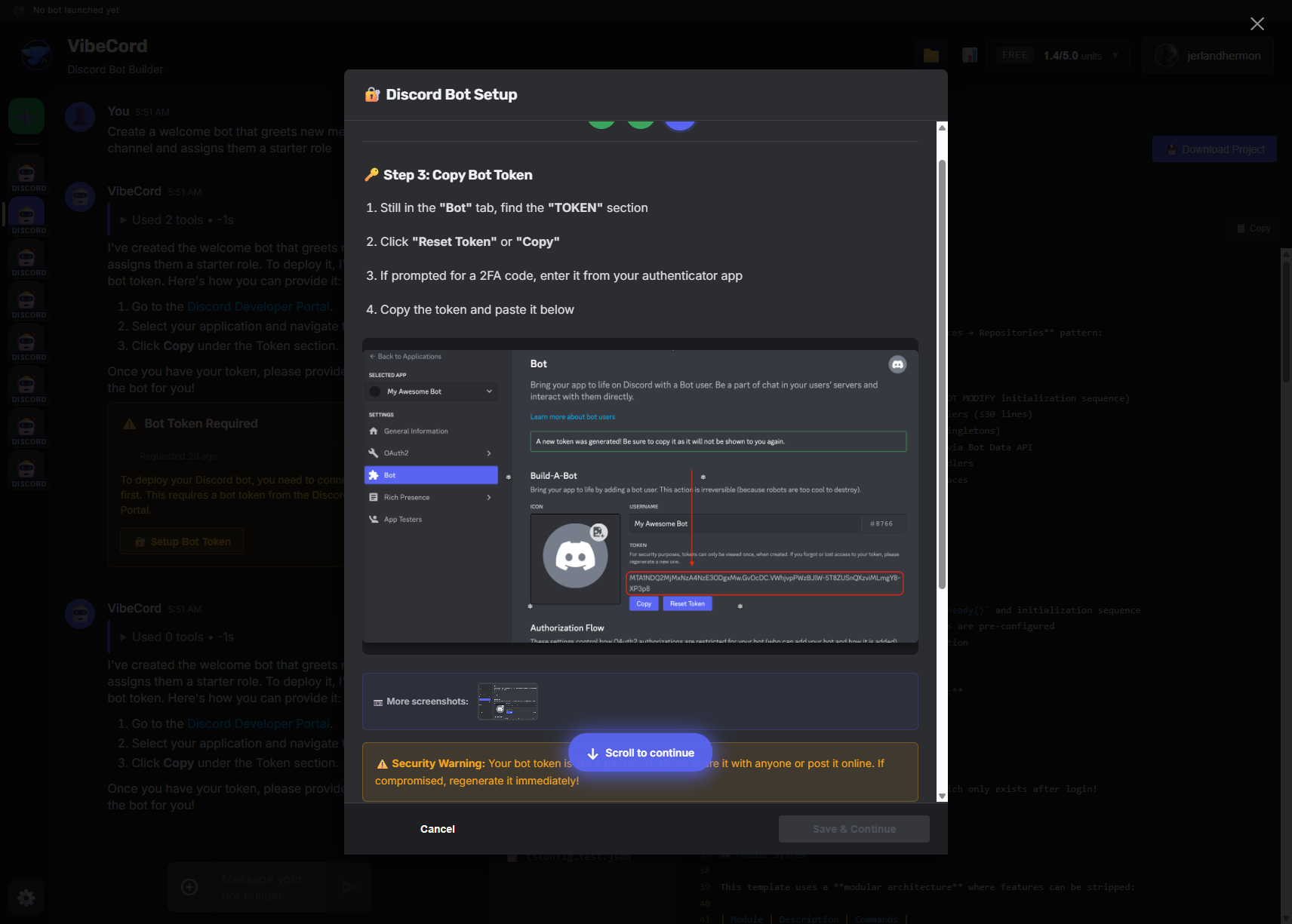
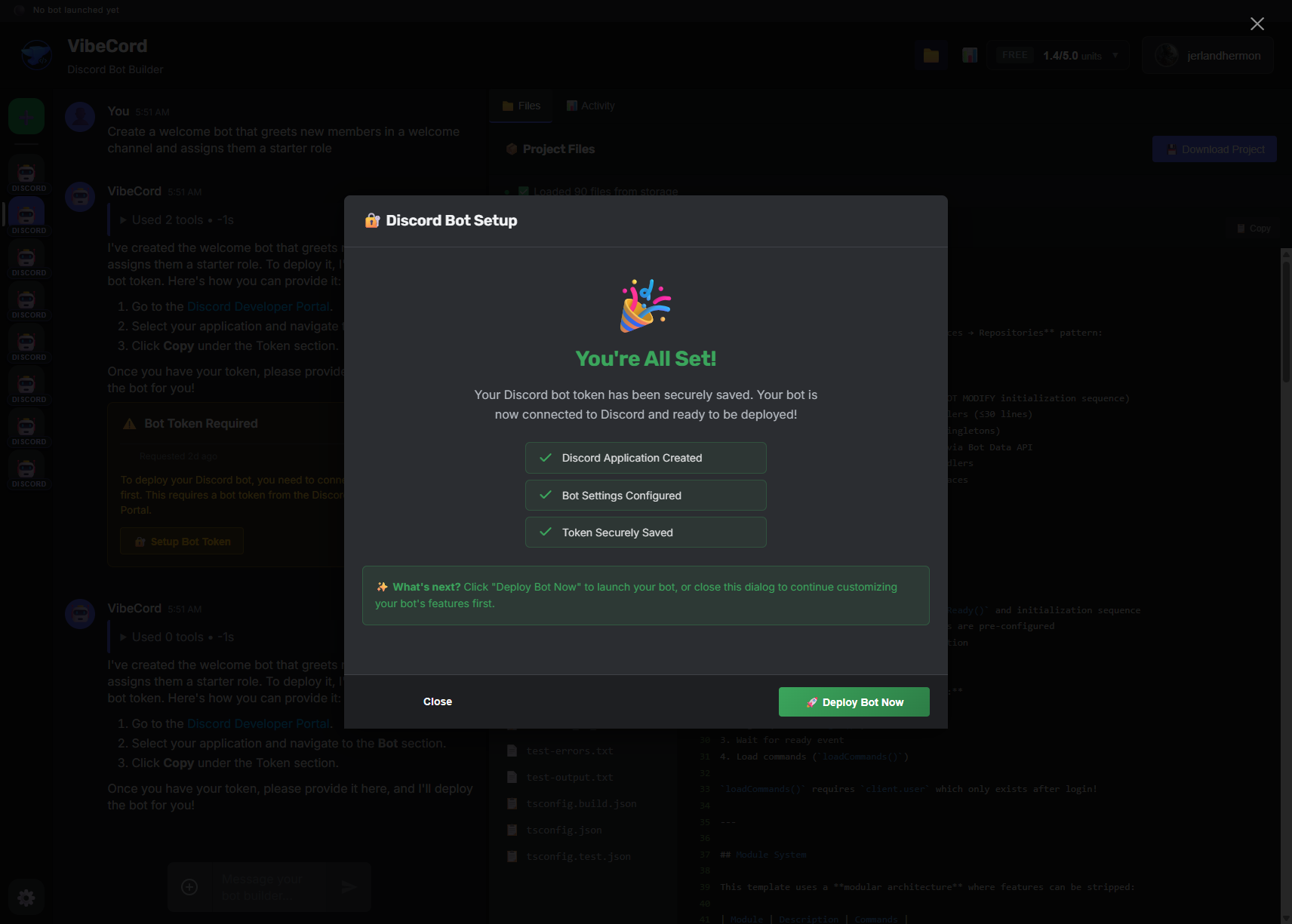
Success!
If your bot manages roles, you need to position the bot’s role correctly in your Discord server:
How to fix:
Token Location
Discord Developer Portal → Your App → Bot → Token
Required Intents
Enable: Presence, Server Members, Message Content
Token Format
MTMx...ABC.XYZ.def... or mfa.xxxxx...
Security
Never share. Reset immediately if exposed.
Possible causes:
Solution: Go back to Discord Developer Portal → Bot → Reset Token → Copy again
Possible causes:
Solution: Verify intents are enabled, check token is correct, deploy the bot
Possible causes:
applications.commands scope wasn’t included in inviteSolution: Wait 1 hour, or test in DMs with the bot first (syncs faster)
Possible causes:
Solution: Move bot role higher, or re-invite with correct permissions
Add Bot to Server
Deploy Your Bot