Sign In to VibeCord
TL;DR
Sign in with your Discord account and authorize VibeCord.
You’ll land in the app ready to create your first bot.
Getting started takes less than a minute. You’ll use your existing Discord account — no new passwords to remember.
Last updated: 2025-12-14
Step 1: Go to VibeCord
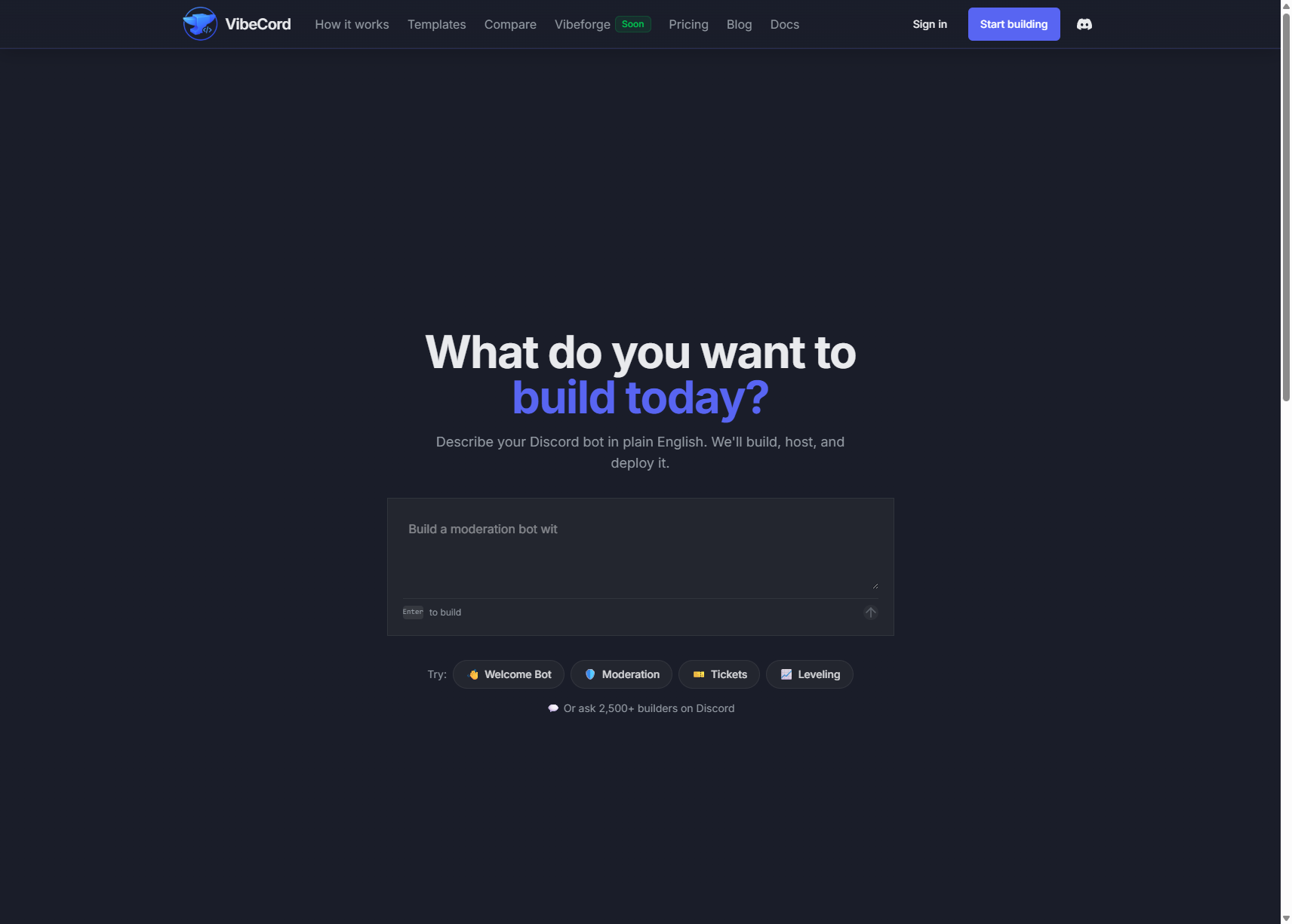
Section titled “Step 1: Go to VibeCord”Open vibecord.dev in your web browser. You’ll see our homepage:
Step 2: Click “Sign in with Discord”
Section titled “Step 2: Click “Sign in with Discord””Click the Sign in with Discord button. Discord will ask you to authorize VibeCord.
Step 3: Authorize VibeCord
Section titled “Step 3: Authorize VibeCord”Discord will ask if you want to allow VibeCord to:
- See your username and profile picture
- Access information needed to create bots
Click Authorize to continue.
Step 4: You’re In!
Section titled “Step 4: You’re In!”After authorizing, you’ll be taken to the VibeCord app where you can start describing your bot:

You’re ready to create your first bot!
What’s Next?
Section titled “What’s Next?”Having Trouble?
Section titled “Having Trouble?””Access Denied” Error
Section titled “”Access Denied” Error”Make sure you clicked Authorize on the Discord page. If you clicked “Cancel” by mistake, try signing in again.
Page Won’t Load
Section titled “Page Won’t Load”Try refreshing the page or using a different browser. VibeCord works best on Chrome, Firefox, Safari, or Edge.
Still Stuck?
Section titled “Still Stuck?”Contact us on Discord — we’re happy to help!