
Edit Your Bot
TL;DR
Tell VibeCord what to change, and it updates your bot's code.
Iterate in small steps, then redeploy to validate.
Want to change your bot? Just tell VibeCoord what you need — no buttons or forms required.
How Editing Works
Section titled “How Editing Works”VibeCoord uses a conversational editing approach. Instead of clicking through settings, you describe what you want to change in the chat, and VibeCoord updates your bot’s code.
Making Changes
Section titled “Making Changes”Step 1: Open Your Project
Section titled “Step 1: Open Your Project”From the sidebar, click on the project you want to edit.
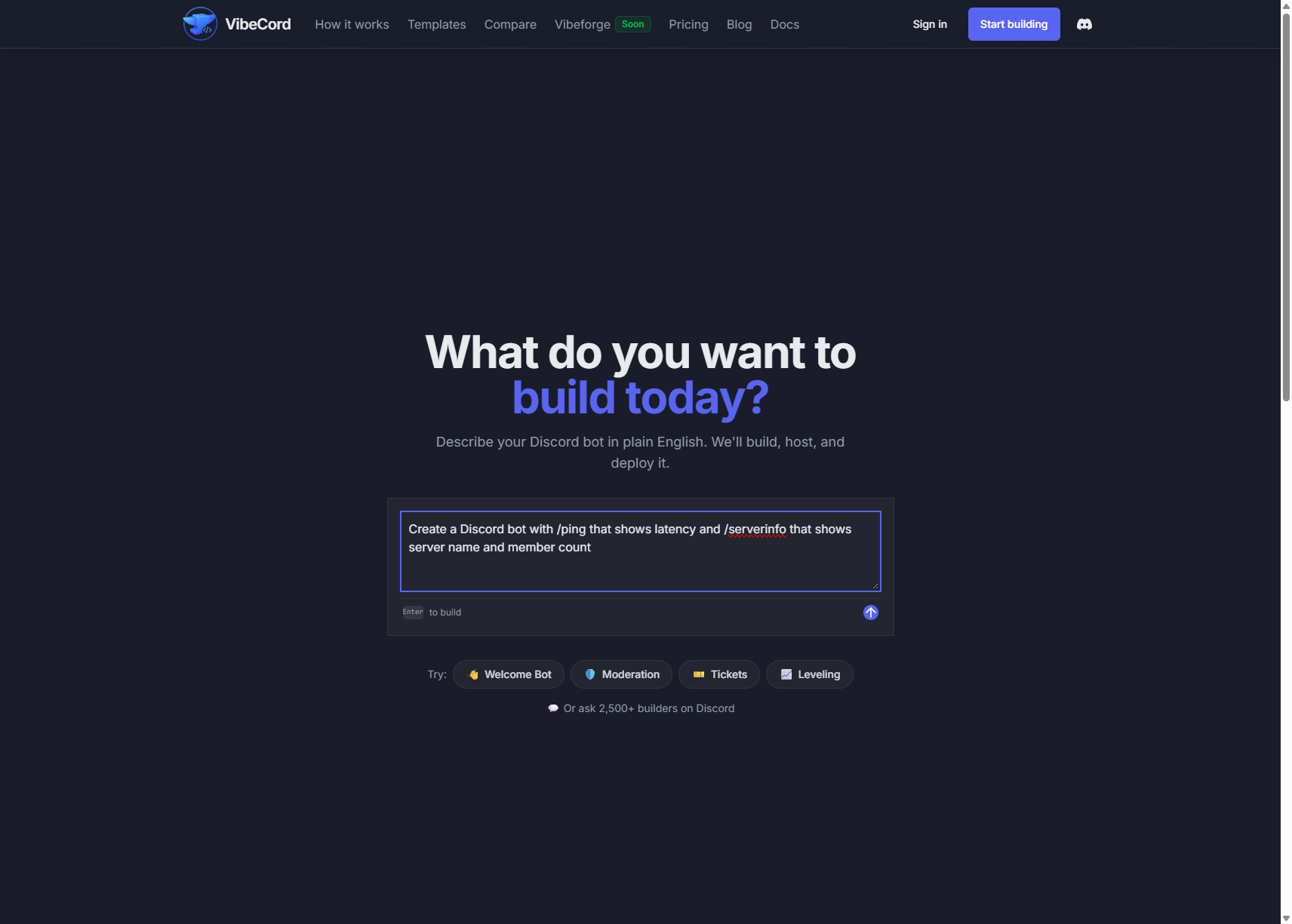
Step 2: Describe Your Change
Section titled “Step 2: Describe Your Change”In the chat, tell VibeCord what you want:
“Add a /coinflip command”
“Change the welcome message to say ‘Welcome to the family! 🎉’”
“Remove the /kick command”
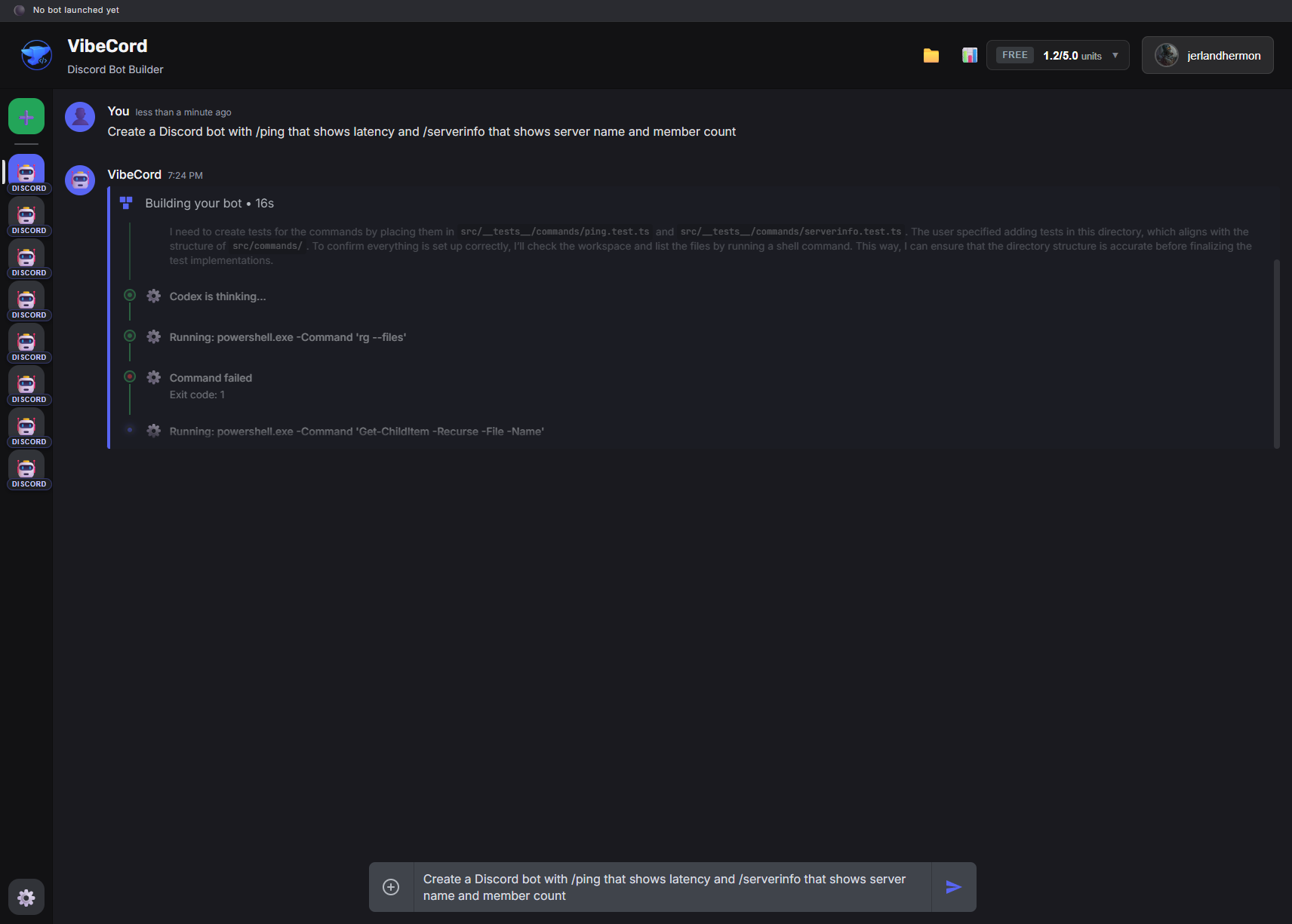
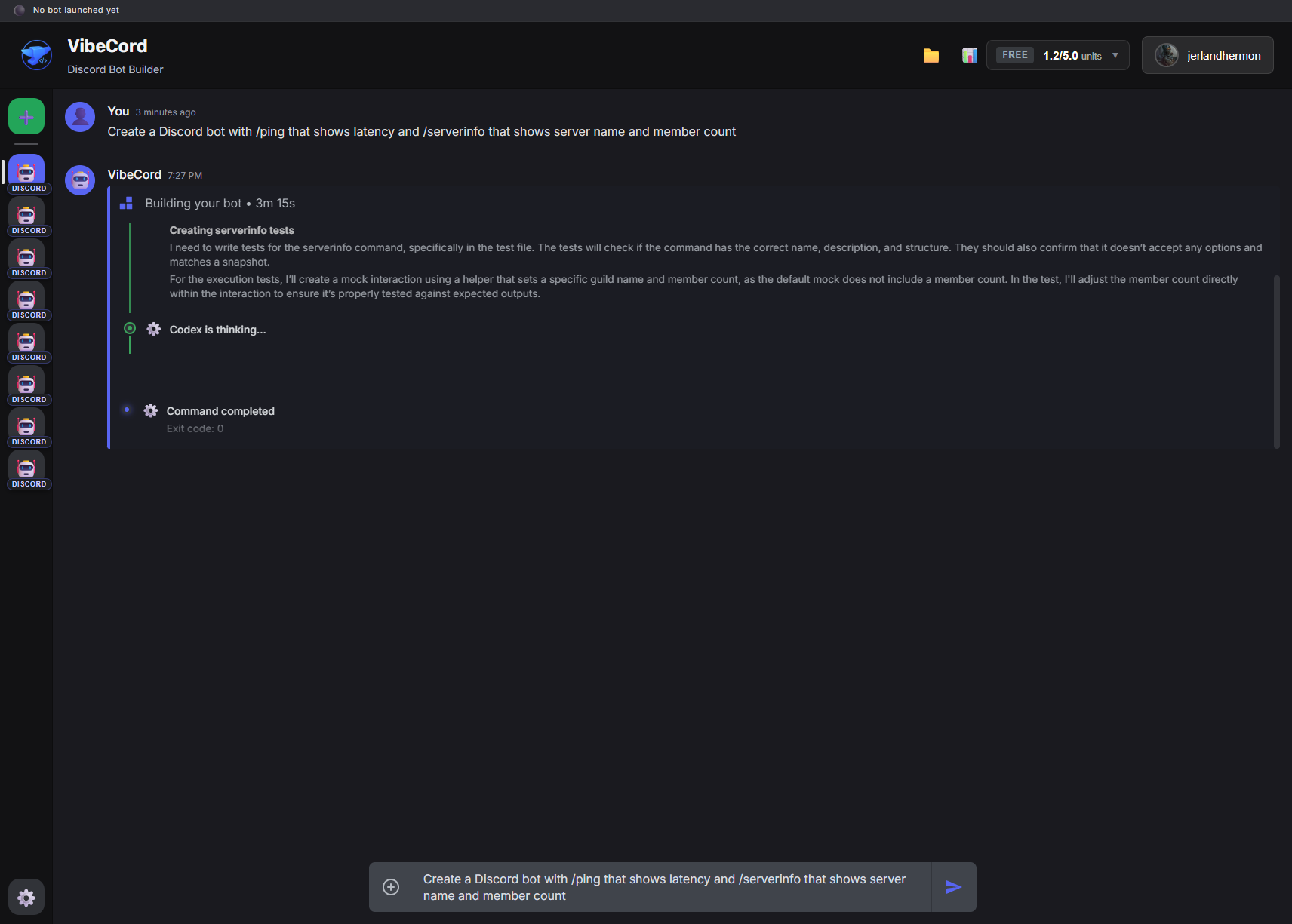
Step 3: Watch VibeCord Update the Code
Section titled “Step 3: Watch VibeCord Update the Code”VibeCord will generate the updated code. You can watch the AI work in real-time:
Step 4: Review the Changes
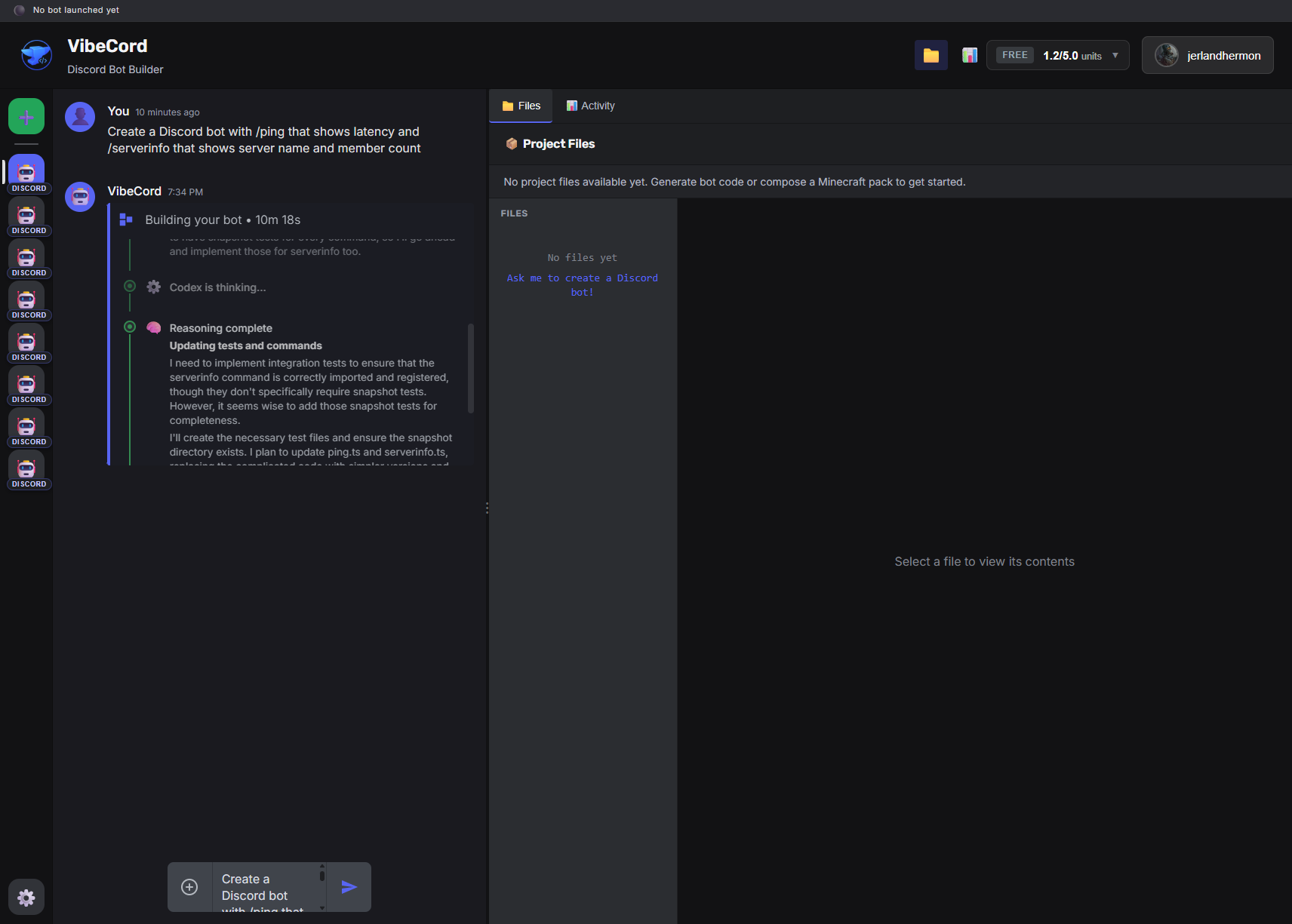
Section titled “Step 4: Review the Changes”You can see the updated files in the 📁 Files panel:
Step 5: Redeploy
Section titled “Step 5: Redeploy”After making changes, redeploy your bot for the updates to go live.
Types of Changes
Section titled “Types of Changes”Adding Features
Section titled “Adding Features”“Add a /poll command that lets users vote on options”
“Add a welcome message when new members join”
“Add an auto-moderator that deletes messages with bad words”
Modifying Behavior
Section titled “Modifying Behavior”“Change the welcome message from ‘Hello!’ to ‘Hey there, friend! 👋’”
“Make the /ban command also log to #mod-log”
“The /joke command should include dad jokes too”
Removing Features
Section titled “Removing Features”“Remove the /yell command”
“Remove the auto-moderation feature”
“Remove role assignment from the welcome message”
Changing Permissions
Section titled “Changing Permissions”“Only let users with ‘Admin’ role use /ban”
“Allow anyone to use /help but restrict /kick to moderators”
Tips for Good Edits
Section titled “Tips for Good Edits”Be Specific
Section titled “Be Specific”Tell VibeCoord exactly what you want:
✅ Good: “Change the welcome message to ‘Hey @username, welcome! Check out #rules first.’”
❌ Vague: “Make the welcome better”
Build on What Works
Section titled “Build on What Works”If you like something, say so:
“The /ban command is perfect. Just add a /tempban that unbans after a set time.”
One Change at a Time
Section titled “One Change at a Time”For complex updates, break them into steps:
- “Add a /warn command”
- “Make /warn log to #mod-log”
- “After 3 warnings, automatically mute the user”
Reviewing Changes
Section titled “Reviewing Changes”View Updated Code
Section titled “View Updated Code”After each change, you can see the updated files:
- Click 📁 in the header to open the Files panel
- Look for files with recent modifications
- Click any file to review the code
Verify Commands
Section titled “Verify Commands”Check the commands/ folder to see what slash commands your bot has.
Deploying Updates
Section titled “Deploying Updates”After making changes:
- Your bot needs to be redeployed for changes to take effect
- Ask VibeCoord to deploy, or use the deployment widget
- The new version replaces the old one
- Your bot stays connected to all servers — no need to re-add it
Common Edit Requests
Section titled “Common Edit Requests”Adding a Help Command
Section titled “Adding a Help Command”“Add a /help command that lists all available commands with descriptions”
Changing Responses
Section titled “Changing Responses”“When someone uses /hello, respond with ‘Hey there, friend! 👋’ instead of just ‘Hello‘“
Adding Role Restrictions
Section titled “Adding Role Restrictions”“Only let users with the ‘Moderator’ role use /kick and /ban”